
Home Tab Tour
When you first log in, you’ll be taken to the Home screen. Here you’ll find everything you need to get started. You can always return to Home by clicking on the Sogolytics logo in the top left corner.
- Quick Start
- All Projects
- Dashboard
- Utilities
- Notifications
- Account Initials
- Watch and Learn
- Recent Projects
- Help Center
Let’s take a tour around the home page:
Quick Start
No time for a tour? No worries! If you skip everything else, check out these two options – boldly front and center in your account.
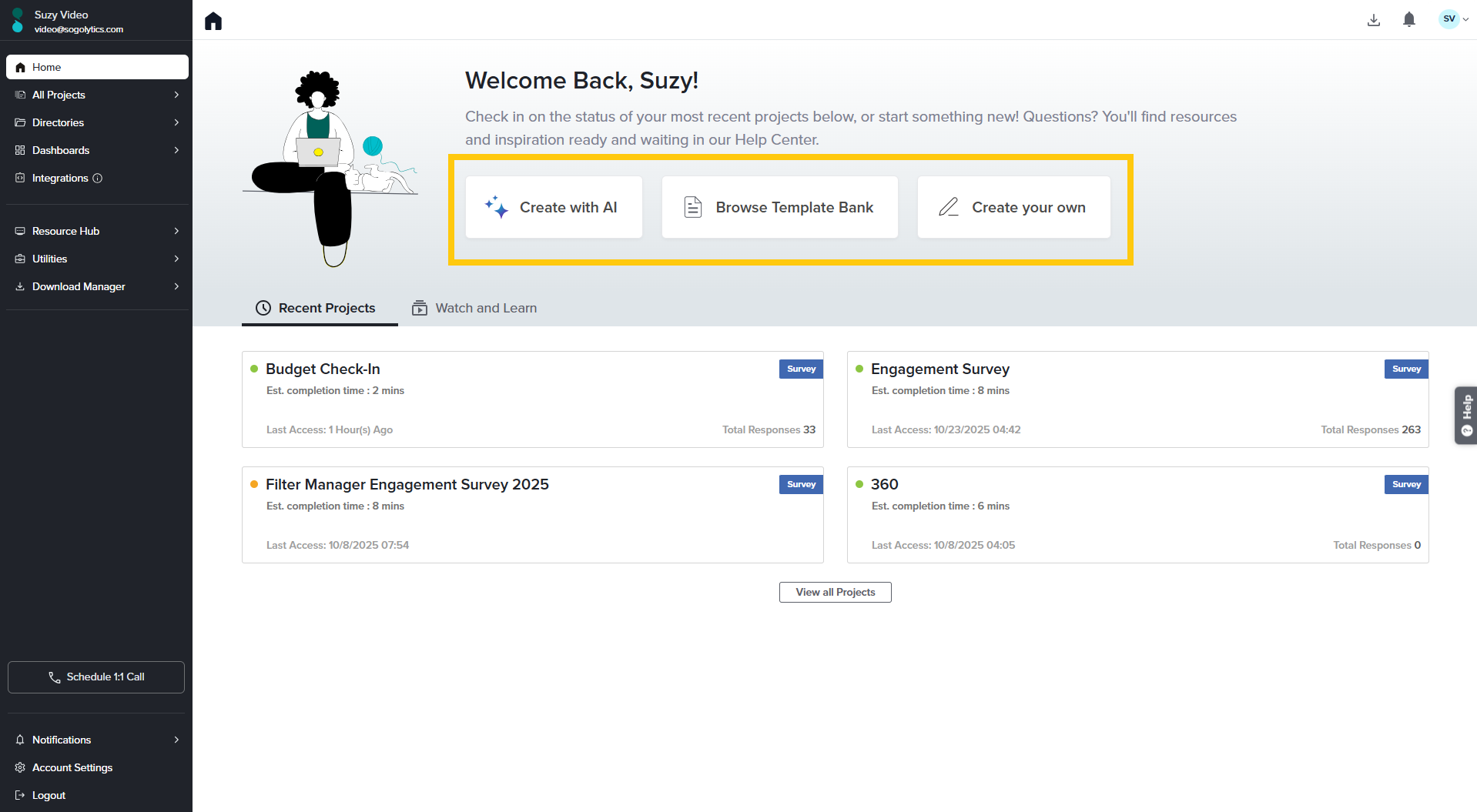
- Create with AI:
Say goodbye to blank pages and hello to intelligent inspiration. Sogolytics Create with AI is your fast track to building powerful, professional surveys in seconds. Whether you’re gathering customer feedback, measuring employee engagement, or launching market research, this feature helps you craft the right questions, structure your survey, and fine-tune your tone — all with just a few prompts. - Template Bank:
Not ready to start from scratch? Gather inspiration from our expert-designed bank of sample projects. These templates apply to a wide range of audiences and purposes, and can be previewed for a quick look, downloaded to review offline or share with a team, and even copied directly into your account for customization – and a quick launch! Click here to learn more. - Create Project:
Exactly as it sounds, this button is the one you need to create any type of project from scratch, to copy one of your previous projects (if you have any!), or to start from a template. Based on your account type, your project options will include:- Survey: From questions to answers, we’ll guide you through every step of designing your perfect survey, distributing, and reporting.
- Poll: It’s easy to collect feedback – serious or silly! – in a single-question poll that’s quick to generate and simple to share.
- Assessment: Assessments are similar to surveys, but with additional evaluation functionality on top! Make the most of each assessment with automated scoring, displayed timers, customized follow-up, and more!
- CX Project: Study customer experience with dedicated question types and numerous reporting options.
- EX Project: Focus on improving employee experience.
All Projects
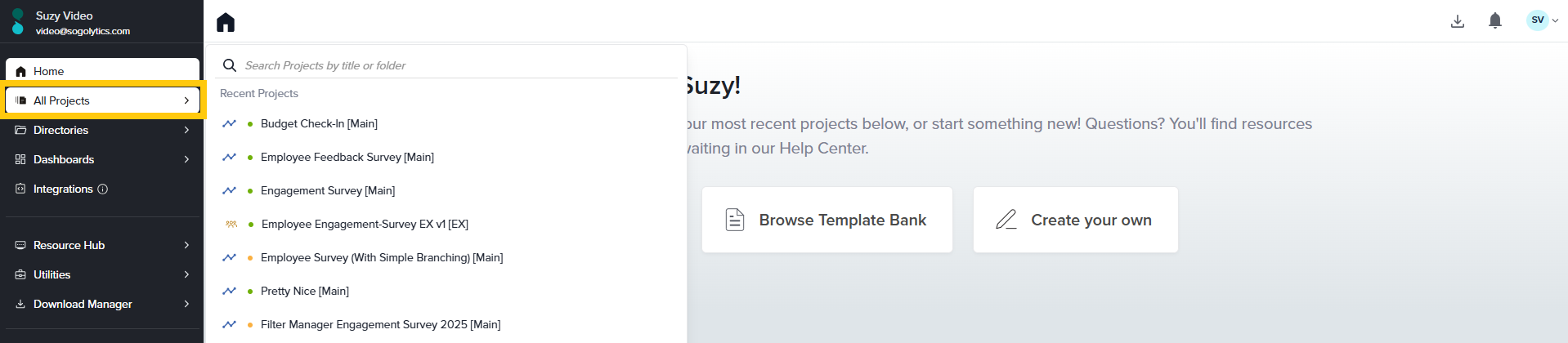
In the left-hand side panel, directly under home, you’ll find the tab for All Projects. No surprises here – this icon gives you easy access to all of your projects so you can take quick action. At the bottom of this list, select View All Projects to see…all your projects! You can also organize projects and manage folders. Click here to learn more about the quick actions you can perform on this screen.
Directories and Dashboards

Based on your type of account, you will be able to access Directories and Dashboards by selecting the tabs after All Projects.
CX and EX Dashboards
These Dashboards offer an overview of either CX or EX metric trends, a view of the customer or Employee journey, comparisons between key segments, a drill-down on open-ended responses, and prediction of future performance based on significant key drivers. Click to learn more about CX dashboards or EX Dashboards. Click to learn more about CX Dashboards and EX Dashboards.
Utilities
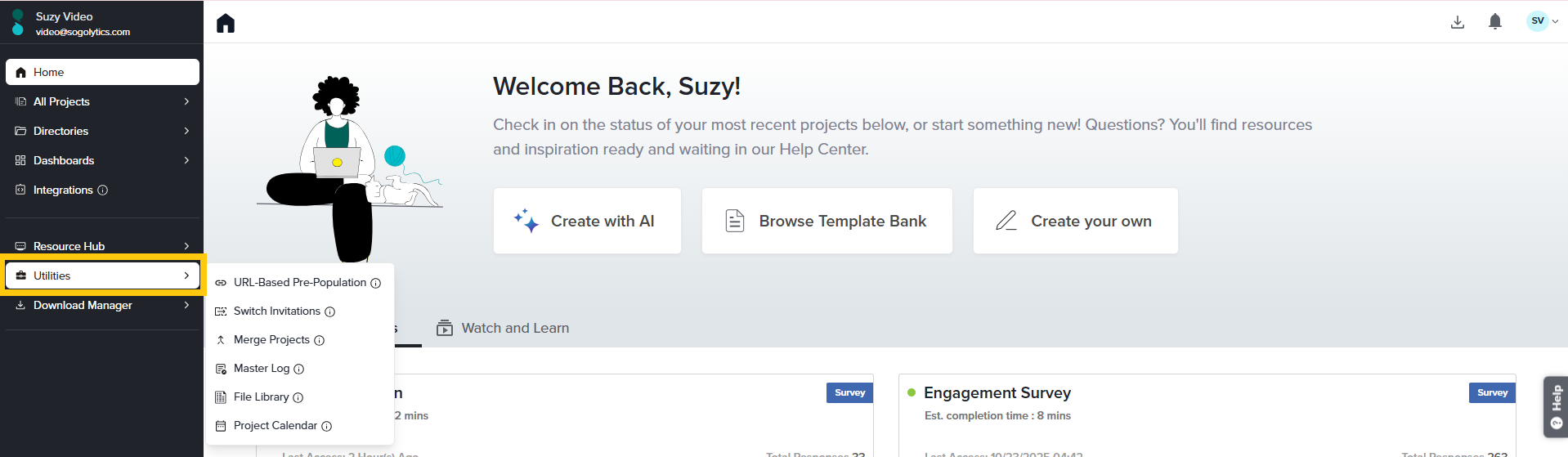
Utilities provides quick access to a range of more advanced features, many of which are more useful after you have designed your project or received responses. Utilities comprise of Integrations, URL-Based Pre-Population, Switch Invitations, Merge Projects, Master Log, File Library, Quick Access Shortcut and Project Calendar.
Notifications
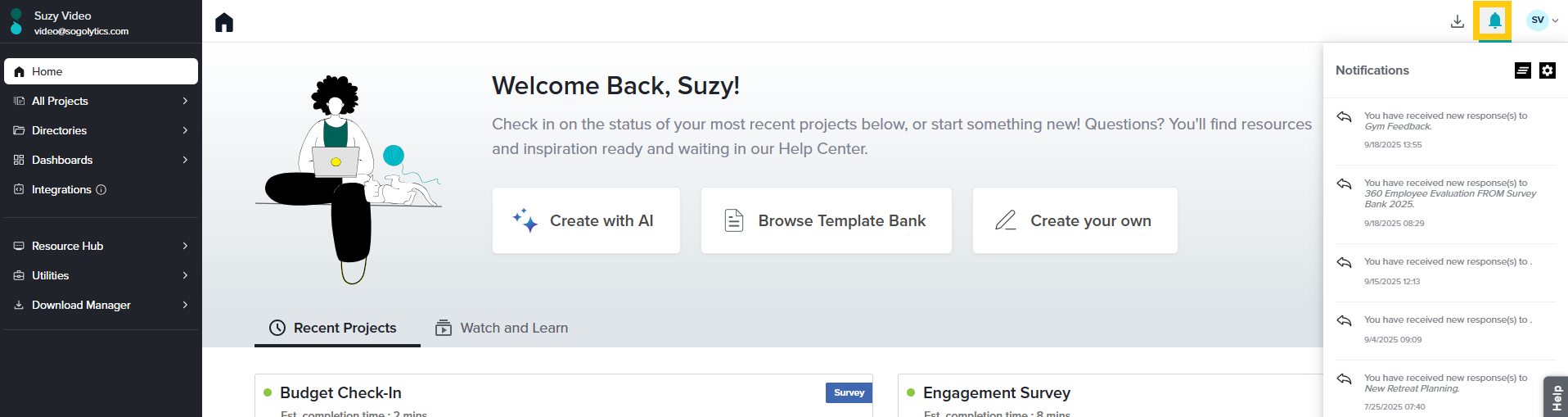
This is where you can see the latest happenings within your project like when your scheduled invitation is published, schedule reminder is published, new response is received and much more. By clicking on Settings within Notifications, you can choose the notifications you’d like to receive by toggling on the preferred options.
Account Initials
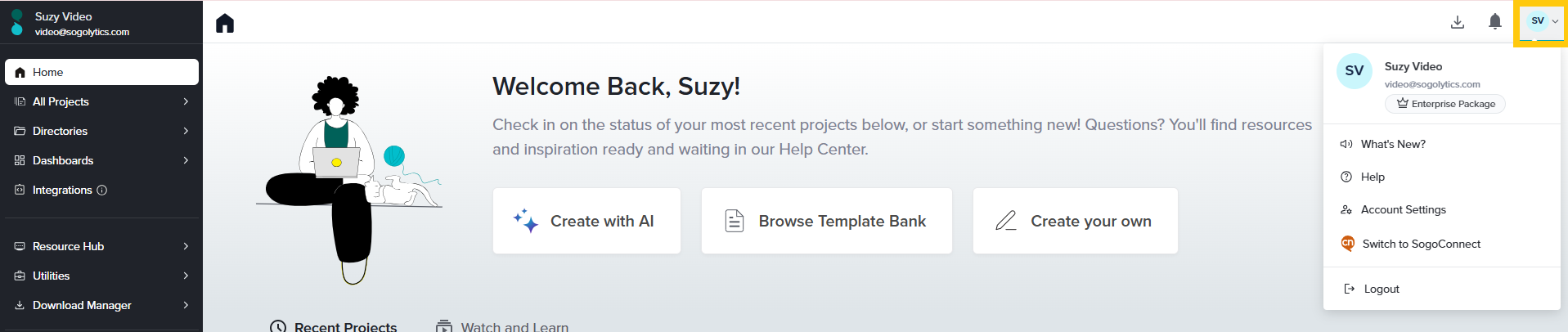
In the upper right-hand corner, you’ll find your account initials. Here, you will be able to see your account initials. You can see what package you have and can also access help and account settings.
Watch and Learn
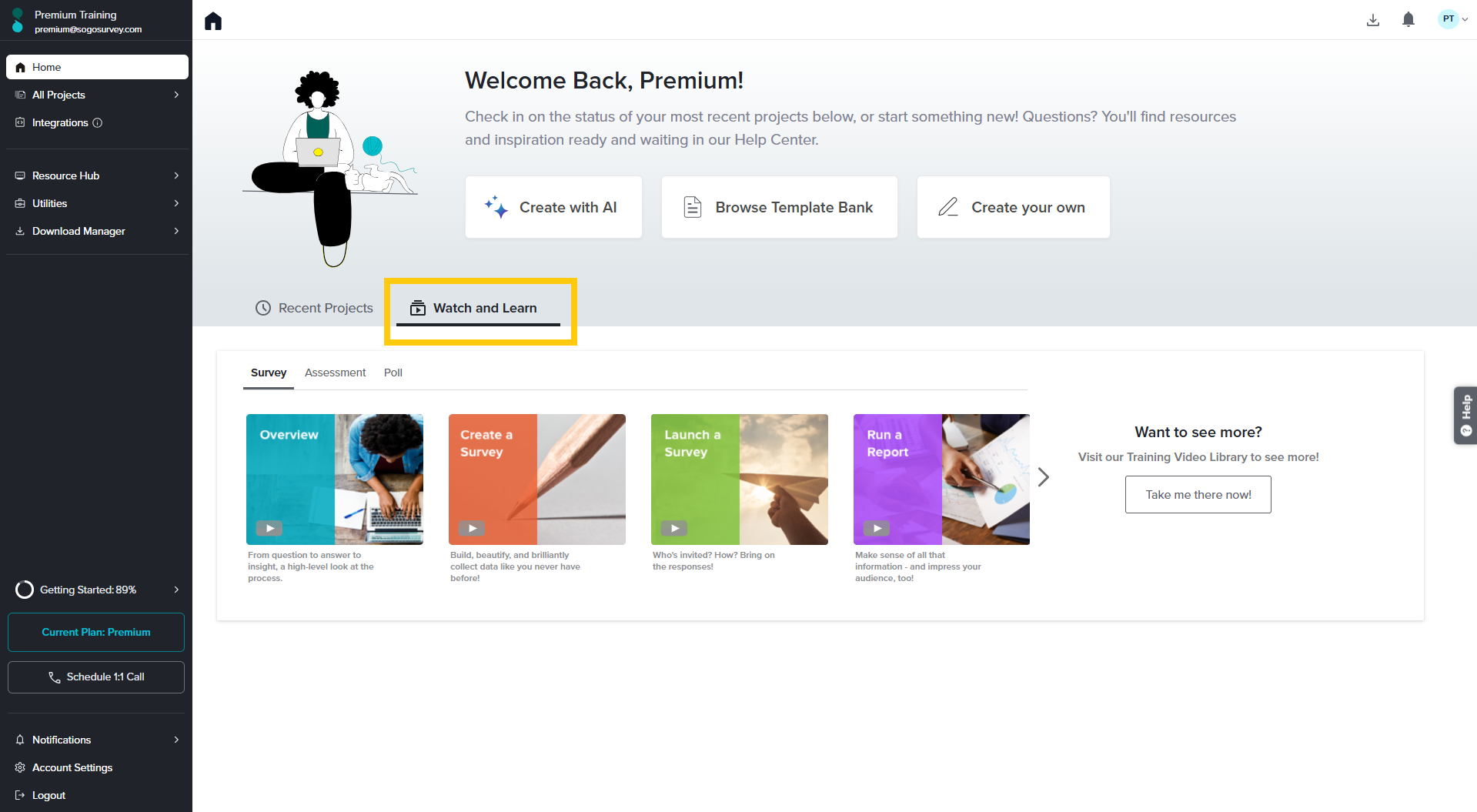
Here you’ll find quick access to important videos for getting started, including those specific to project types that offer guidance on designing, distribution, reporting, and data management. For detailed information on a particular feature, refer to the Video Library link.
Recent Projects
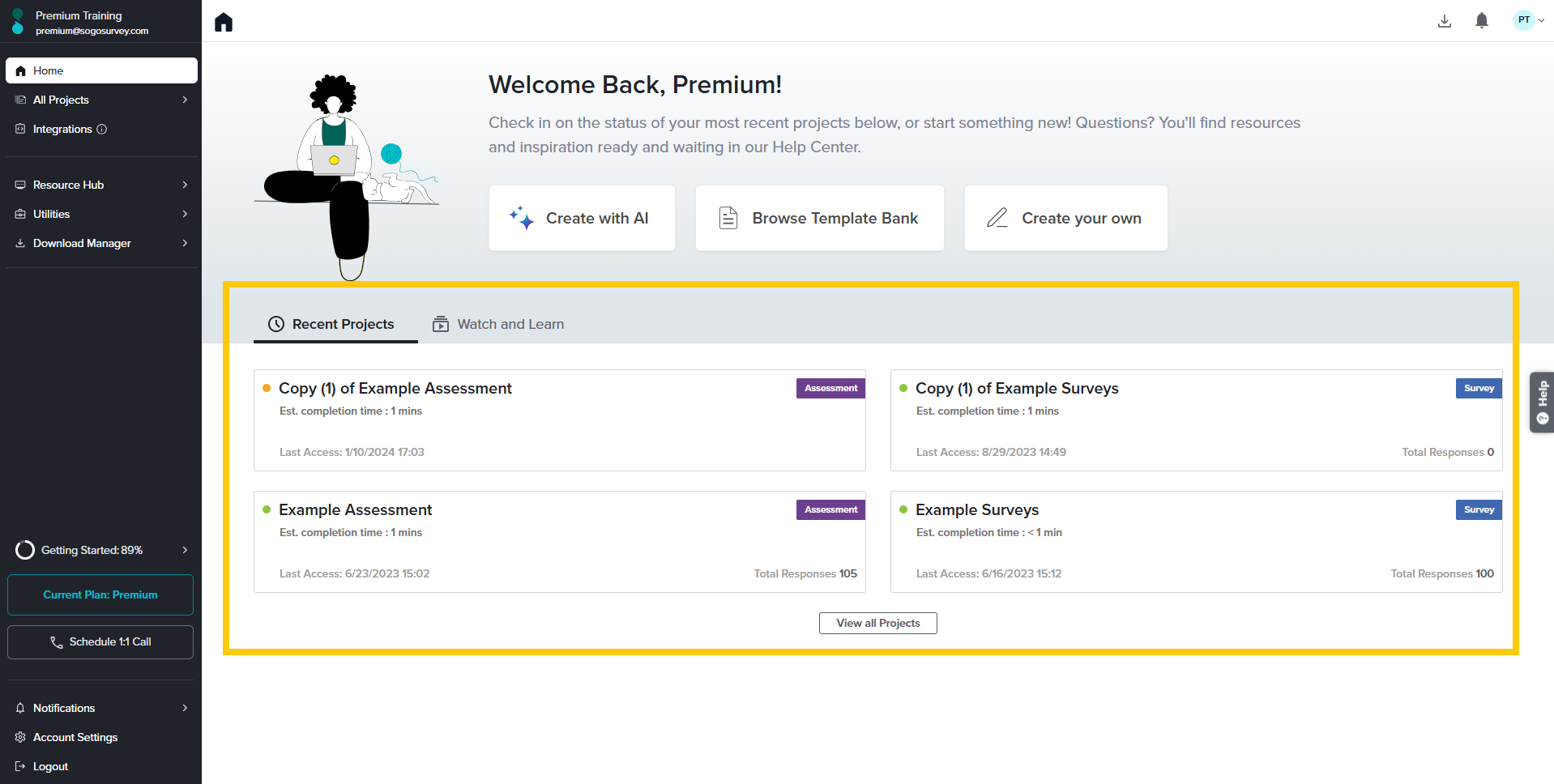
Here is where you see the most recently accessed projects within your account. Along with the project name, the type of project, last access details and total number of responses are displayed. Hover over the project name to view more options for project-based actions. Click here to learn more.
Help Center
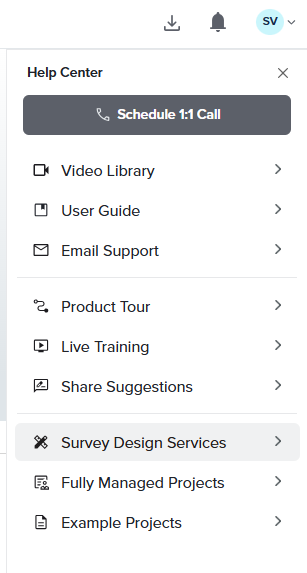
If you need help at any time, from any page, click the Help tab on the right to access support resources. You’ll find User Guide articles, videos, training and support options, and access to additional services.
Subscribe for tips and insights to drive better decisions!